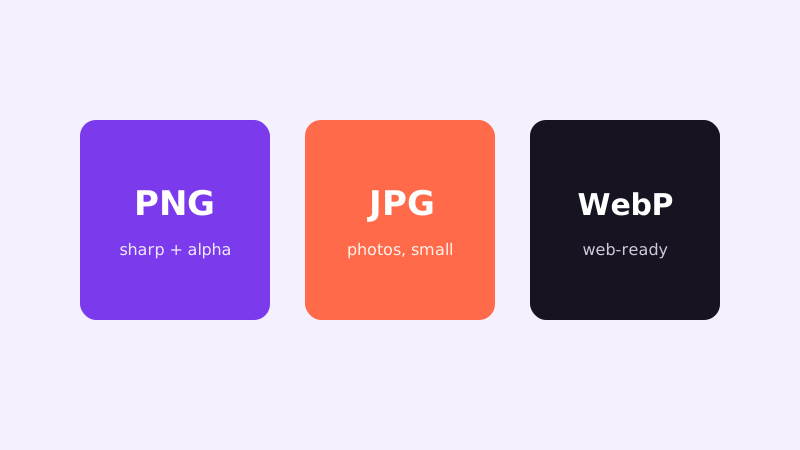
PNG, JPG or WebP? The choice takes ten seconds once you know what each format is actually doing. Pick wrong and the same picture can weigh fourteen times more, come out blurry, or arrive with a white box where transparency should be. Here is the plain-language version professionals use.
What each format is for
JPG is the photo format. It compresses by discarding detail your eye barely notices in photographs — gradients, textures, skin tones. It has no transparency and hates sharp edges: text and logos develop fuzzy halos when saved as JPG repeatedly.
PNG is the precision format. It compresses losslessly, so screenshots, diagrams, logos and text stay pixel-perfect, and it supports transparency. The cost is size: a photo saved as PNG can be five to fifteen times heavier than the same photo as JPG.
WebP is the modern web format, built by Google for exactly this dilemma. It typically beats JPG by 25–35 percent at the same visual quality and supports transparency like PNG. Support is now universal in browsers, though some older desktop software and a few upload forms still refuse it.
The ten-second decision
Ask two questions. Is it a photograph or photo-like? Use JPG — or WebP if the destination is a website you control. Does it contain text, sharp edges, a logo, or a need for transparency? Use PNG — or WebP for the web. Screenshots are the classic trap: they look like pictures but are really text and hard edges, so PNG keeps them crisp at reasonable sizes.
Never use JPG for a logo that must sit on different backgrounds — without transparency it drags a white rectangle everywhere. Never use PNG for a hero photo on a website unless you enjoy slow pages. And never re-save a JPG as PNG hoping for quality: the lost detail is gone; you only make the file bigger.
Converting without regrets
Converting JPG to WebP for your site is a genuine win: same look, roughly a third lighter, faster pages. Converting PNG screenshots to JPG for an email is fine if the text stays large — test one first. Batch-converting a folder beats file-by-file work, and keeping the original filenames (with only the extension changed) keeps your archive sane.
One more habit: keep one master copy in the highest-quality format you have, and convert copies for each destination. Formats are cheap; re-shooting a photo or re-scanning a document is not. All of the conversions mentioned here run happily inside your browser — no uploads, no queues, and your pictures stay on your own device.
Sizes you can expect in practice
Numbers make the choice concrete. A phone photo exported as PNG commonly lands between 8 and 20 MB; the same photo as a good JPG is 1–3 MB, and as WebP often under 2 MB. A screenshot full of text might be 300 KB as PNG, an unreadable smear at 60 KB as an over-compressed JPG, or a crisp 120 KB as WebP. Format choice routinely matters more than any quality slider.
Watch out for one impostor: a PNG that is really a photo gains nothing from its format — converting it to JPG loses nothing visible and saves megabytes. And beware the double conversion: JPG to PNG to JPG compounds artefacts each round trip. Convert once, from the best master you have, directly to the format the destination wants.
If a form or an older program refuses WebP, that is a limitation of the destination, not of the format — convert a copy to JPG or PNG for that one upload and keep WebP for everything you publish yourself.
Ready to try it? Open the Convert Image tool — it runs entirely in your browser, so your files never leave your device.
Try it yourself: Convert Image runs entirely in your browser — your files are never uploaded.