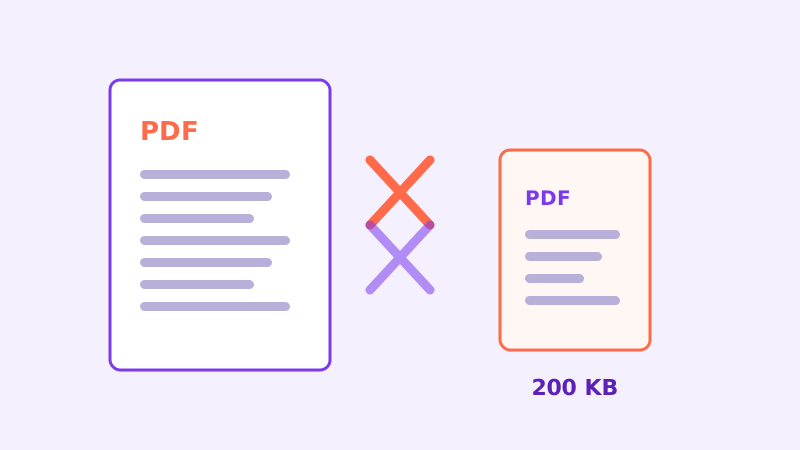
Every upload form has a limit, and it is always smaller than your file. Government portals ask for 200 KB, email sulks past 10–25 MB, and job sites reject anything over 5 MB. Shrinking a PDF well starts with a diagnosis: files are heavy for a handful of reasons, and each reason has a different cure. Guessing wastes quality; measuring saves it.
Find out what is actually heavy
A PDF's weight usually comes from images. A single phone photo of a document can weigh 4 MB; a ten-page scan can outweigh a 200-page text report. Text itself is nearly free — a page of pure text is a few kilobytes. So compare: if your PDF is mostly typed pages and still huge, it probably contains a scanned image on every page, or embedded fonts and attachments are inflating it.
The practical test: if you can select and copy the text, the pages are real text. If the page behaves like one big picture, it is a scan, and compression will treat it as a picture — resampling and re-encoding the images, which is where the size lives.
Pick a target, then work backwards
Start from the limit the form gave you and aim slightly under it — for a 200 KB cap, target about 180 KB so metadata and rounding never push you over. Then choose the gentlest settings that reach it. Most tools offer quality levels or a balance slider; begin at the high-quality end, check the result size, and step down only as far as needed.
Two levers matter most. Image resolution: scans at 300 DPI are print-grade overkill for a screen-read form; 150 DPI halves or quarters the weight while staying perfectly legible. Image quality: re-encoding photos at moderate quality typically removes 60–80 percent of their bytes with no visible change at reading size.
Shrink the document before you shrink the quality
Compression should be the last resort, not the first. Delete blank and duplicate pages. Split away sections the form never asked for. Merge only the required documents instead of your whole archive. Each removed page is size saved at zero quality cost — the cheapest kilobytes are the ones that were never needed.
If colour is irrelevant — many forms only need the information — a grayscale rendering of scanned pages can cut image weight substantially. Keep the colourful original archived; submit the lean copy.
Verify like the form will
Open the shrunken file and zoom to 150 percent. Small text, signatures and stamps must still be readable; a form reviewer who cannot read your document rejects it as surely as the size filter did. Check the page count and the file size one final time, and keep the original untouched in case a human later asks for the high-quality version.
And because these forms usually collect exactly your most sensitive documents — IDs, statements, certificates — prefer a compressor that works in your browser. The file that never leaves your device cannot be leaked, retained or misused by anyone's server.
When the limit is truly brutal
Some legacy portals still demand 200 KB for a multi-page document, a limit written when scans were black-and-white faxes. If gentle compression stalls above the cap, split the document and submit the parts in the form's separate fields if it has them — many do, one field per document type. If it truly has one field, reduce scan resolution first, colour second, and only then quality; resolution is where scanned weight actually lives, and 120–150 DPI remains readable for typed pages.
Whatever combination gets you there, run the airplane-mode sanity check on yourself: the documents these forms demand are the ones you least want copied onto unknown servers, which is precisely why the shrinking should happen on your own machine.
Ready to try it? Open the Compress PDF tool — it runs entirely in your browser, so your files never leave your device.
Try it yourself: Compress PDF runs entirely in your browser — your files are never uploaded.